


Starlink
4.711.09K Reviews
App Specs
- Version
- 2026.21.0
- Updated On
- License
- Free
- Downloads
- 10,000,000+
- Developer
- Space Exploration Technologies Corp.
- Categories
- Tools
- Platform
- Android, iOS
Screenshots

 Analysis by AppCompare
I judge the Starlink app by the practical job it has to do: help people set up a satellite internet connection and keep an eye on the service afterward. That makes it different from a typical network utility. It is not a general-purpose speed booster or a way to replace your provider on its own; it is the companion for Starlink equipment. If you are weighing it for a home, a remote worksite, or a place with few broadband choices, the key question is whether its setup and monitoring tools make managing that connection easier.
Using Starlink day to day
I find the most useful way to approach Starlink day to day is to treat the app as a guide for checking the connection, not as a guarantee that every online task will behave the same way. I’d use its readings alongside what I’m actually doing—especially before an important call or a large download—so I can tell a brief change from a pattern worth investigating.
Setup and choosing a clear view
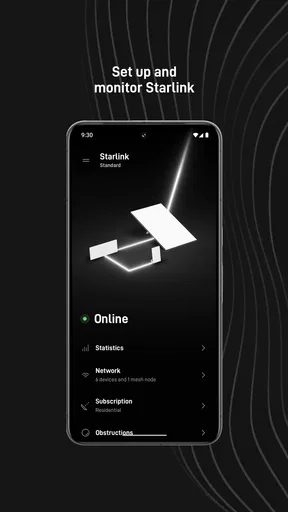
First things first, setting up Starlink is surprisingly straightforward. Once you’ve got your dish and hardware sorted, the app takes you through the process step-by-step. It’s like having a tech-savvy friend guiding you through it. The interface is clean and user-friendly, which I really appreciated. No unnecessary bells and whistles, just what you need to get connected.
One of the coolest features is the ability to check the obstructions in your area. The app uses your phone’s camera to show a live view of the sky, helping you find the best spot for your dish. It’s pretty neat watching the app do its thing, almost like a sci-fi movie come to life.
That sky check is more than a novelty: it can help you avoid the tempting but poor placement choice, such as setting up beside a building simply because the cable route is convenient. I would use it before fixing the dish in place, then consider whether nearby trees, rooflines, or other obstacles could interfere with its view. A clear view at the first setup can save you from mistaking a placement problem for a network problem later.
For a household, I’d treat the initial setup as a small planning task rather than something to rush through. Think about where people use the internet, where the hardware can be placed, and whether the likely dish location gives the sky-check tool a clear result. The app guides the process, but it cannot make a blocked location suitable; choosing the spot remains the user’s job.
Speed expectations and busy moments
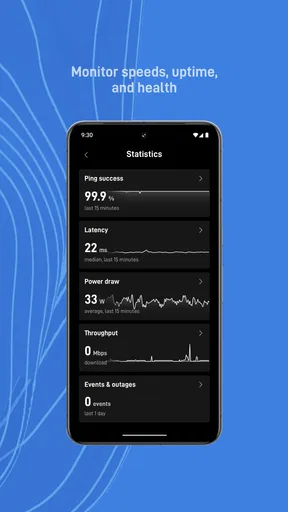
Let’s talk performance. Once everything is up and running, you’ll notice that the internet speed is quite remarkable. Living in a rural area, I’m used to buffering and lag, but with Starlink, those days seem to be behind me. The app provides real-time speed tests, so you can keep tabs on how your connection is performing. It’s quite satisfying to see those numbers soar.
Worth Reading Before You Choose

EA SPORTS FC Mobile 26 Is a Bigger Football Game, but It Takes Time

Flipboard Shows What News Apps Must Do Beyond the Feed

Switching to Android Auto Means Rethinking Your Driving Routine

Google Calendar Makes a Crowded Week Easier to Manage

Ludo King Makes the Most of the Minutes Between Plans

Baby Panda World Brings Quick Play to Modern Phones, but Its Game Library Feels Busy
I would read a speed test as a snapshot, not a promise that every video call, download, or game will feel identical. If a connection seems sluggish during a busy evening, test it again at a different time before changing your setup. That simple comparison helps separate a temporary dip from a recurring issue, and it is more useful than repeatedly running tests back to back and treating every result as a verdict.
Heavy household use is where expectations matter. A video stream, a large download, and a work call can all compete for attention on a single connection, and the app’s monitoring role is to help you see how the service is doing, not to guarantee that every activity gets equal priority. For someone who depends on a call, I’d avoid starting a large download at the same moment if it can wait. That is a sensible habit with any home internet service, especially when the connection’s performance varies.
There is also a difference between a strong speed-test result and a consistently responsive experience. Video calls and online games can be sensitive to interruptions, while browsing and ordinary streaming may be more forgiving. I would use the test to spot broad changes, then judge the connection against the task that matters to me. A single impressive figure does not tell the whole story of reliability in a particular room or at a particular hour.
Keeping track of reliability
The app also keeps you updated with any issues that might pop up. It gives you a heads-up on network outages or maintenance, so you’re never left in the dark. I found this feature particularly helpful as it keeps the surprises to a minimum.
That kind of notice is useful for deciding what to do next: wait if the service reports a wider disruption, or look more closely at your own setup if the connection alone seems affected. It will not make an outage disappear, but having a place to check service status is better than guessing whether a device, dish placement, or wider network issue is responsible.
For remote work, I’d still keep a backup plan for important meetings or deadlines. The app can help you monitor the service, but monitoring is not the same as guaranteeing uninterrupted access. A phone connection or another available network may be a sensible fallback where the cost of a missed call is high. For casual browsing in an underserved area, that extra caution may matter less.
What stands out about Starlink is its ability to provide internet in places where traditional ISPs struggle. Whether you’re out camping in the woods or living off the grid, the app ensures you’re still connected to the world. This feature is a huge relief for those of us who crave both adventure and connectivity.
I’d be careful not to treat the app itself as proof that service is suitable everywhere or for every trip. Its job is tied to Starlink equipment and service, so the practical decision comes down to whether that setup fits the location and the way you plan to use it. For a fixed rural home, setup and ongoing checks can be part of a routine. For someone who only needs occasional access in places already covered by reliable mobile service, a familiar mobile connection may be simpler.
Managing devices and choosing the right tool
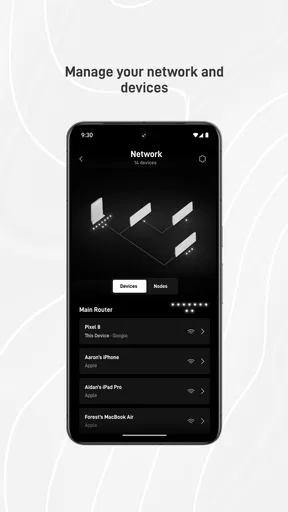
Moreover, the app allows you to manage multiple devices seamlessly. It’s optimized to handle the demands of modern households, so whether you’re streaming, gaming, or just browsing, the connection holds up impressively well.
In a busy home, I’d use the app as the first place to check the connection before blaming an individual phone or laptop. If several devices have trouble at the same time, the service or overall setup deserves attention; if only one device is affected, checking that device separately is a more sensible next step. This basic distinction can prevent unnecessary resets and keep troubleshooting focused.
Compared with the usual alternatives in the tools category, this is a specialist companion rather than a universal Wi-Fi analyzer. A general network utility may be a better fit if you want to inspect a router from another provider or troubleshoot a mixed setup. Starlink’s advantage is that its tools are built around its own service and installation, so you do not have to translate generic network information into Starlink-specific decisions.
The trade-off is straightforward: the app’s usefulness depends on owning or planning to use Starlink hardware. If you simply want to measure a connection from any provider, a broadly compatible speed-test or network tool is more flexible. If your goal is to install and monitor Starlink, that flexibility matters less than having the service’s setup and status tools together.
A realistic routine might be to check the sky view before choosing a mounting spot, complete the guided setup, and then use a speed test only when performance seems different from normal. If a problem appears, I’d check for a service notice before moving equipment or changing several things at once. Keeping track of what changed makes it easier to identify whether the issue followed a placement adjustment or cleared on its own.
Who should consider it, and what to keep in mind
While the app and service are impressive, there are a couple of things to keep in mind. The initial setup cost can be a bit steep, but considering the benefits, it’s a worthwhile investment. Additionally, since it relies on satellites, weather conditions can sometimes affect connectivity. It’s not a deal-breaker, but something to be aware of.
Those trade-offs make the app most appealing to people who already use Starlink or are seriously considering it for a location where ordinary broadband options fall short. It is less compelling for someone with dependable home internet who only wants an extra speed-test shortcut. The app can guide and inform, but it does not remove the practical requirements of the equipment, the installation, or a clear dish location.
The app does a great job of keeping users informed about any potential disruptions. Plus, it’s continually being updated to improve performance and user experience, which is always a good sign.
Space Exploration Technologies Corp. develops this free tools app, which is rated for Everyone. It has a 4.7 average from around 252,000 ratings, and more than 10 million installs. It first appeared on October 23, 2020, and version 2026.13.0 lists Android 7.0 as its minimum operating system. Those details make it approachable for many Android users, though the app is most relevant when paired with the company’s internet service.
My take on its performance
All in all, Starlink is a fantastic option for those seeking reliable internet in remote or underserved areas. The app is intuitive, the speeds are impressive, and the ability to have internet access anywhere is a true game-changer. If you’re tired of being at the mercy of spotty connections, it's definitely worth considering.
So, that’s my take on the Starlink app. If you’ve been on the fence about trying it out, I’d say go for it. It might just be the solution you’ve been looking for to stay connected, no matter where you are.
My recommendation comes with one important distinction: I’d choose it for the role it actually fills, not because I expect an app to solve every connectivity problem. Its best value is the combination of guided placement, setup help, and service monitoring for a Starlink connection. If that is what you need, it is a practical companion; if you need a provider-neutral tool or already have internet that meets your needs, a different option will make more sense.
Pros
- High-speed internet access in remote areas.
- Simple setup with user-friendly instructions.
- Reliable connection with low latency.
- Frequent updates improve performance.
- Portable—can be used in various locations.
Cons
- Higher cost compared to traditional ISPs.
- Requires clear view of the sky for best signal.
- Occasional service interruptions in bad weather.
- Limited availability in some regions.
- Large hardware footprint may not suit small spaces.
FAQs for Starlink
What is Starlink and how does it work?
Starlink is a satellite internet constellation being constructed by SpaceX to provide satellite Internet access. The service aims to deliver high-speed broadband internet to locations where access has been unreliable, expensive, or completely unavailable. It works by using a network of low Earth orbit (LEO) satellites to beam internet data down to Earth.
How fast is the internet speed with Starlink?
Starlink promises broadband speeds that vary depending on location, but users can generally expect speeds ranging from 50 Mbps to 150 Mbps. Latency is also relatively low, around 20 to 40 milliseconds, which is suitable for most internet needs, including streaming and gaming. Speed may fluctuate as the network expands.
What equipment do I need for Starlink?
To use Starlink, you'll need the Starlink Kit, which includes a satellite dish, a mounting tripod, a Wi-Fi router, and necessary cables. The dish, often referred to as a "Dishy," is self-orienting and connects to the satellites automatically. Installation is straightforward, and the dish needs a clear view of the sky.
Is Starlink available in my area?
Starlink is rapidly expanding its coverage, but availability depends on your geographical location. To find out if Starlink is available in your area, you can visit the official Starlink website and enter your address. If service is not yet available, you can sign up for updates or pre-order for future availability.
How much does Starlink cost?
The cost of Starlink includes a one-time equipment fee of around $499 and a monthly service fee of $99. Prices may vary based on local taxes and fees, and SpaceX occasionally offers promotions or discounts. While the initial cost is higher than some traditional services, it provides a valuable option for underserved areas.


